
Pay with your ING Corporate Card using Apple Pay
Reading time: 5min
2 November 2026
Apple Pay allows you to make secure business payments without carrying your physical card and helps you pay quickly while travelling, working remotely or making online business purchases.
Opens in a new tabApple Pay is a fast, easy and secure way to make payments with your ING Corporate Card using your Apple device. Once you have added your card to Apple Wallet, you can pay in stores, online and within apps without using your physical card.
Why use Apple Pay?

Secure
Authorise payments using Face ID, Touch ID or your device passcode. Your actual card number is not shared with merchants when you pay with Apple Pay.
Easy
Pay quickly with a compatible Apple device when travelling for business, making business purchases, paying online or paying in apps.
Widely accepted
Use Apple Pay wherever you see the Apple Pay mark or contactless payment symbol.
Get started with Apple Pay
Add your ING Corporate Card to Apple Wallet through the ING Commercial Card app.
1. Open the ING Commercial Card App
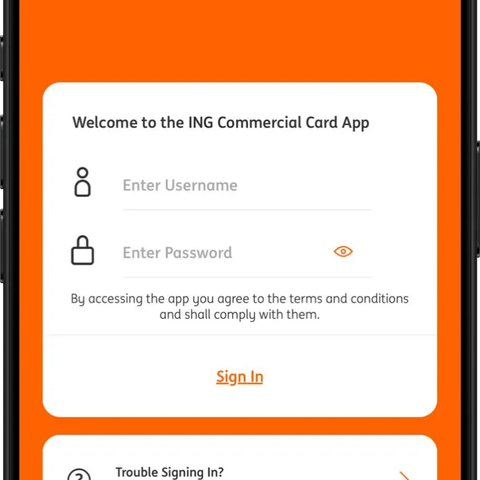
Open the app and sign in using your usual login method, such as Face ID, Touch ID, or your username and password.
2. Add to Apple Wallet
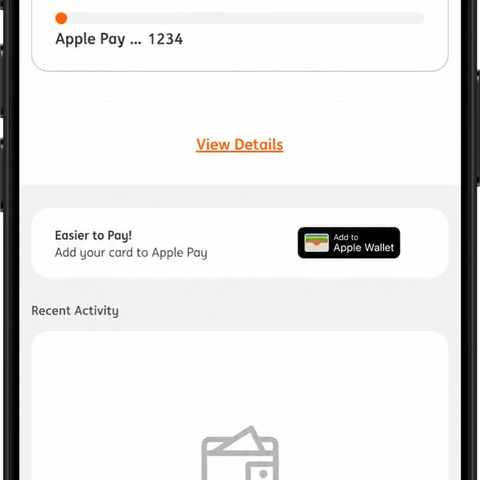
On the home screen, select the 'Add to Apple Wallet' button and follow the instructions.
3. Select your device
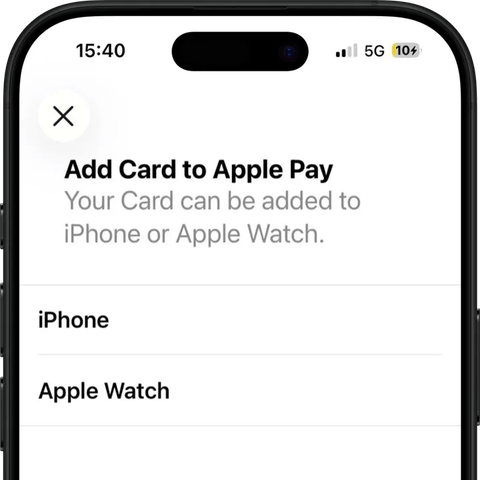
If both an iPhone and another device are connected to your account, select the one to which you want to add your card. To use Apple Pay on more devices, repeat the process for each.
4. Complete the verification
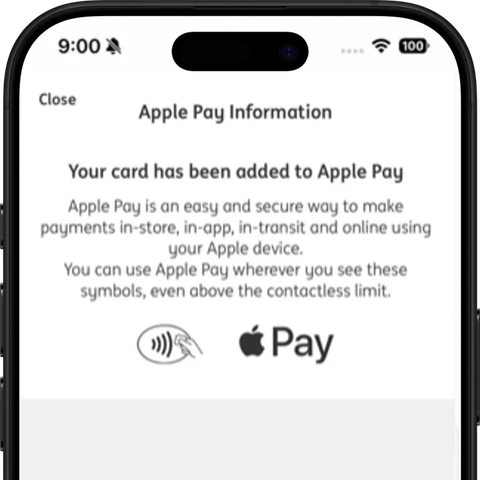
Follow the instructions displayed on your screen and accept the terms and conditions. You can choose how would you like to verify your card: either through a text message or via a call on your registered phone number.
Your card is now ready to use with Apple Pay.
Using Apple Pay on other devices
Do you also have an Apple Watch, iPad and/or Mac and want to start using Apple Pay? Select your respective device below to find out how.
Apple Watch
Use Apple Pay on your Apple Watch to make contactless payments without taking out your physical card.
- Open the ING Commercial Card App.
- Select 'Add to Apple Wallet'.
- Select your Apple Watch.
- Follow the instructions displayed on your screen.
- Accept the terms and conditions.
Once your card has been added successfully, it is ready to use on your Apple Watch.
iPad
Use Apple Pay on a compatible iPad to make payments in apps and online. Apple Pay on iPad cannot be used for in-store purchases.
- Open the ING Commercial Card App.
- Select 'Add to Apple Wallet'.
- Follow the instructions displayed on your screen.
- Accept the terms and conditions.
Once your card has been added successfully, it is ready to use on your iPad.
Mac
Use Apple Pay on your Mac to make payments in apps and online. Apple Pay on Mac cannot be used for in-store purchases.
- Open ‘System Settings’.
- Select ‘Wallet & Apple Pay’ in the sidebar.
- Click 'Add Card' in the 'Payment Cards' section.
- Follow the instructions displayed on your screen.
- You will receive an SMS on your phone to verify your card.
Once your card has been added successfully, it is ready to use on your Mac.
Frequently asked questions
What do I need to activate Apple Pay?
To use Apple Pay, you need:
- An activated ING Corporate Card.
- The latest version of the ING Commercial Card app.
- A Opens in a new tabdevice compatible with Apple Pay.
- The latest available version of iOS on your device.
- An active iCloud account.
- An internet connection during setup.
Can I add more than one ING Corporate Card to Apple Pay?
Yes. If you have several cards, you can add them to Apple Pay. In the ING Commercial Card app, switch between your cards and add each one separately.
Can I add my ING Corporate Card directly through Apple Wallet?
Yes. Have your card ready and scan it, tap it against your device, or enter the card details manually. Follow the on-screen instructions, accept the terms and conditions, and verify the request by SMS or phone call.
How do I choose which ING Corporate Card to use by default in Apple Pay?
- iPhone: Open ‘Settings’, select ‘Wallet & Apple Pay’, tap 'Apple Pay Defaults' and then ‘Default Card’ to choose a card. Otherwise, open the 'Wallet' app and then touch, hold and drag your card in front of the others.
- Apple Watch: Open the 'Watch' app on your iPhone, select 'Wallet & Apple Pay', tap 'Apple Pay Defaults' and then 'Default Card' to choose a card.
- Mac: Open ‘System Settings’, select ‘Wallet & Apple Pay’ and then tap ‘Default Card’ to choose a card.
How do I remove my ING Corporate Card from Apple Pay?
Remove your card through the wallet to which it is linked:
- Open the 'Wallet' app from your iPhone home screen. Do not use the side-button shortcut.
- Select the card you want to remove.
- Tap the more button (the circle with three dots) and then tap 'Card Details'.
- Scroll down and tap ‘Remove Card’.
- Confirm that you want to remove it.
After removal, the card will no longer be visible in your wallet. You will receive confirmation by email and SMS, and its transaction history will no longer be available there. You can add the card again later.
If you use Apple Pay on an Apple Watch, remove the card separately through the 'Watch' app on your iPhone.
What is the payment limit for Apple Pay?
Your ING Corporate Card spending limit also applies to Apple Pay payments. All Apple Pay payments count towards your card limit.
Why does an Apple Pay payment fail?
Possible reasons include:
- The available balance or spending limit is insufficient.
- Your ING Corporate Card has not yet been activated and is awaiting verification.
- Your ING Corporate Card is temporarily or permanently blocked.
Will Apple Pay payments appear in my expense reports?
Yes. Transactions made through your digital wallet are processed and reported in the same way as transactions made with your physical ING Corporate Card.
Read the Opens in a new tabOpens a pdfterms and conditions that apply when using Apple Pay.
Support

Do you still have questions?
Contact your local ING Corporate Card helpdesk
Do you still have questions?